A Great Password Policy

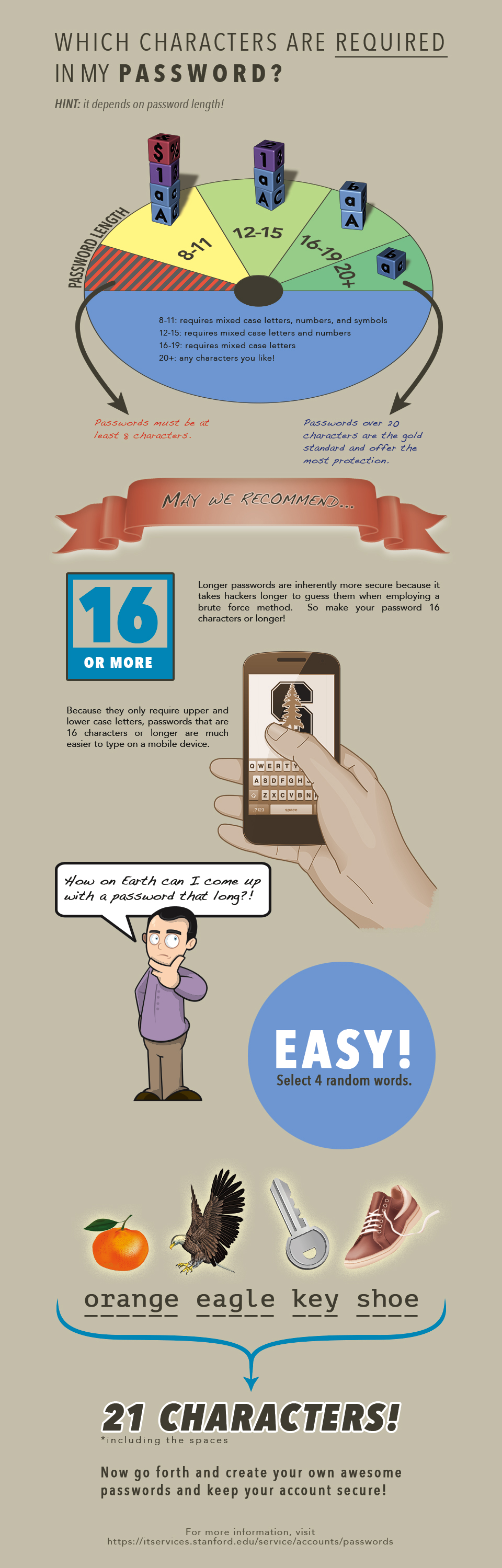
In response to my previous blog post on strong passwords, a friend pointed out Stanford’s new password policy, which I quite like and thought worth sharing. This policy plays off probabilities, meaning that if you decrease the number of total characters in your password (decreasing the total permutations), you must use more character types instead (increasing the total permutations).

The policy breaks requirements into 4 tiers by password length:

  • “8-11: requires mixed case letters, numbers, and symbols
  • 12-15: requires mixed case letters and numbers
  • 16-19: requires mixed case letters
  • 20+: any characters you like!”

This policy is also mobile friendly, as it’s much easier to type a bunch of letters on a phone than a few random symbols.

I find the policy flexible and accessible and I hope it helps improve your understanding of how to make a strong password.

Stanford IT Services. http://itservices.stanford.edu/service/accounts/passwords/quickguide
Posted in security | Leave a comment

Strong Passwords

An important part of data management is protecting data from loss. While good storage practices are a first line of defense, there are several other things you can do to help keep your data secure. One is to use strong passwords.

Strong passwords prevent other people from accessing your systems, either because an outsider cannot guess the password or because a computer cannot brute-force attack the system until it stumbles upon the right password. Even if you don’t deal with sensitive data, it’s still a good idea to put a barrier, in the form a password, between your data and people who might accidentally or purposefully harm your files.

Strong passwords have a number of characteristics. The first is that they are not obvious, meaning that they are not easy to guess. There are several flavors of obvious passwords, starting with the generally obvious password. This category includes passwords like:

  • 12345
  • qwerty
  • abc123
  • password (or passw0rd)

These examples are actually from a list of the 25 worst passwords of 2011. It’s worth perusing the list because it’s very enlightening.

The second category of obvious passwords include passwords that are personal to you but still easy to guess. This includes things like:

  • Your pet’s name
  • A family member’s name
  • A birthdate, a marriage date, etc.
  • Your username
  • The name of your favorite band, movie, etc.

Personally obvious passwords offer a little more protection than generally obvious passwords, but are still easy to guess if the hacker knows something about you.

A third category of obvious passwords is the single dictionary word. You should avoid this category because dictionary words are more vulnerable to brute-force attack and are still fairly guessable. Here are some examples of passwords to avoid:

  • monkey
  • baseball
  • dragon
  • sunshine

These examples are actually pulled from the bad password list linked above, which is further proof why you should avoid the single-word password.

Another characteristic of a strong password is that it is not used for more than one platform. Using the same password on multiple platforms means that if one platform is hacked, you are now vulnerable on other platforms. This does mean maintaining a lot of passwords, but using a different password for each system you work on makes everything more secure overall.

Now that we’ve looked at a few things that password’s shouldn’t be, let’s look at some characteristics that strong passwords should have. The first characteristic is that passwords should be long – strong passwords have at least 8 characters and preferably more. The reason for using long passwords is that they are harder to crack – a fact which comes back to basic probabilities. There are a total of (26)^8, or over 200 billion, possible options for 8-character passwords consisting of only lowercase letters. That’s a lot of passwords to try in order to find the right one. When you add more characters, you increase the total number of permutations and decrease the probability of finding the right password on any one guess. Therefore, long passwords make strong passwords.

A second quality of strong passwords is that they mix upper- and lowercase letters, numbers, and symbols. Coming back to probabilities, we can see why this is a good thing. If we add uppercase letters into our 8-character password, suddenly we have (52)^8 possible passwords, or over 50 trillion permutations. That number goes up when you add in numbers and symbols. Plus, a lot of variety makes it harder to outright guess a password. So always use many types of characters in your passwords.

The final characteristic of a strong password is that it is something that you’ll actually remember. It’s not worth using a password that you have to physically write down in order to remember; that defeats the security of your password. The good news is you can now use a password manager to keep track of your passwords. Password managers also make it easy to maintain different passwords for different platforms, a problem mentioned above. The one thing to note is that you must use a really strong password for the manager software, as this will help keep all of your other passwords safe.

So how does one combine all of this advice into a single password? One strategy is to string a few words together and throw in some uppercase letters, numbers, and extra characters. For example, I can combine the words “badger” and “moon” into the password “1B@dger+1/4mOOn”. Not only is this a strong password, but it’s easy for me to remember by the phrase “one badger plus quarter moon”. A second strategy is to hack up a phrase you will remember. For example, I can abbreviate the phrase “wit beyond measure is man’s greatest treasure” from the Harry Potter books and make it into the password “WbMiMgT#Ravenclaw”. A third strategy is to borrow from l33t speak to swap out letters with equivalent l33t characters. All of these strategies reduce to using a bit of creativity to transform something you will remember into a strong password.

My last word on passwords is that you should never, ever share your passwords. Just don’t do it. Ever. You obviously don’t want strangers gaining access to your account, but even friends without malicious intent can mess with your files. You also give up control when sharing a password because the other person is free to further share your login information. Plus, if anything bad happens, you are to blame because the issue happened under your login credentials. Suffice to say, sharing a password is never a good idea. Take it from the The Doubleclicks and these other geeky icons: Don’t Tell Anyone Your Password.

Posted in security | 1 Comment

Zero v. Null

Zero
“Null Schatten / Zero shade” by Winfried, https://www.flickr.com/photos/w-tommerdich/3630153810 (CC BY-NC-SA)

An important aspect of data management is performing quality control on your data. This means checking your data for errors, ensuring consistent formatting, documenting the meaning of your variables, etc. Also under the umbrella of quality control is how to represent the absence of value in a dataset.

The absence of value can mean many things in a dataset including a true zero, that the data point is missing, that the data point is not applicable to this entry, etc. Unfortunately, many of these cases end up with the same label (or several different labels for any one case!) in a dataset, either “0”, a blank entry, “NA” or something else. And when it comes to calculating values like averages, there is a big difference between a “0” that is a true zero and one that is a placeholder for missing data. Therefore, we need to establish some best practices around absence of value.

The first rule is that “0” always represents true zero and nothing else. This means that you’ve made a measurement and that measurement happens to be zero. Only using “0” for this case makes your subsequent calculations accurate.

The second rule is to pick a good null label. This label will represent a lack of measurement. One of the best null labels is the blank entry, which most programs will interpret as null (so long as you’re careful not use a space instead of a blank). A secondary option is to use the null value preferred by your primary analysis program: “NA” in R, “NULL” in SQL, and “None” in Python, etc. (see Table 1 of White, et al.). However, this option is less ideal as it can result in unexpected problems if you don’t modify the nulls in your dataset before using it in a different program. So it’s best to stick with the blank entry for all of your null data points.

The third rule is to be consistent. There is no point in standardizing something if you’re not going to be consistent about it and, in this case, consistency makes for accurate calculations. So pick a system and stick with it!

Finally, you should document anything that isn’t standard. Want to use blanks for missing data and “NA” for not applicable data points? You can do it, so long as you are clear and upfront (and consistent) about the system you use.

Keeping zero and null straight is not difficult, but it takes a little conscious effort to be sure that everything is accurate. This effort is worth it in the long run, as your datasets are streamlined and your calculations turn out correct.


References:

This post is about nothing*, Practical Data Management for Bug Counters. 30 Jan 2014.

White, et al. Nine simple ways to make it easier to (re)use your data. Ideas in Ecology and Evolution. 6(2). 2013. http://library.queensu.ca/ojs/index.php/IEE/article/view/4608/4898

Posted in dataAnalysis | Leave a comment

Test Your Backups

A lot of data management is about risk prevention and near the top of that list is having a good backup system (or two). But what I want to talk about today is that it’s not enough to have a backup system in place, you also need to know that it’s working.

There are an incredible number of stories about loosing data due to poor backups, but one of the best comes from the makers of Toy Story 2.

The moral of the story is to check your backups.

You should check your backups for two reasons. First, you need to know that they are working properly. A backup that is not working is not a backup at all. You should test your backups periodically, say once or twice a year, and any time you make changes to your backup system. If your data are particularly complex to back up or particularly valuable, considering testing your backups more frequently.

The second reason to test your backups is to know how to restore from backup. Believe me, you don’t want to be learning how to restore from backup when you’re already in a panic over loosing the main copy of your data. Knowing how to restore from backup ahead of time will make the data recovery process go much more smoothly.

It’s a small thing to periodically test restore from backup, but it will give you the piece of mind that your data are being properly backed up and that you will be able to recover everything if something happens to your main copy. On balance, that’s definitely worth taking a few minutes out of your day for.

Posted in dataStorage | Leave a comment

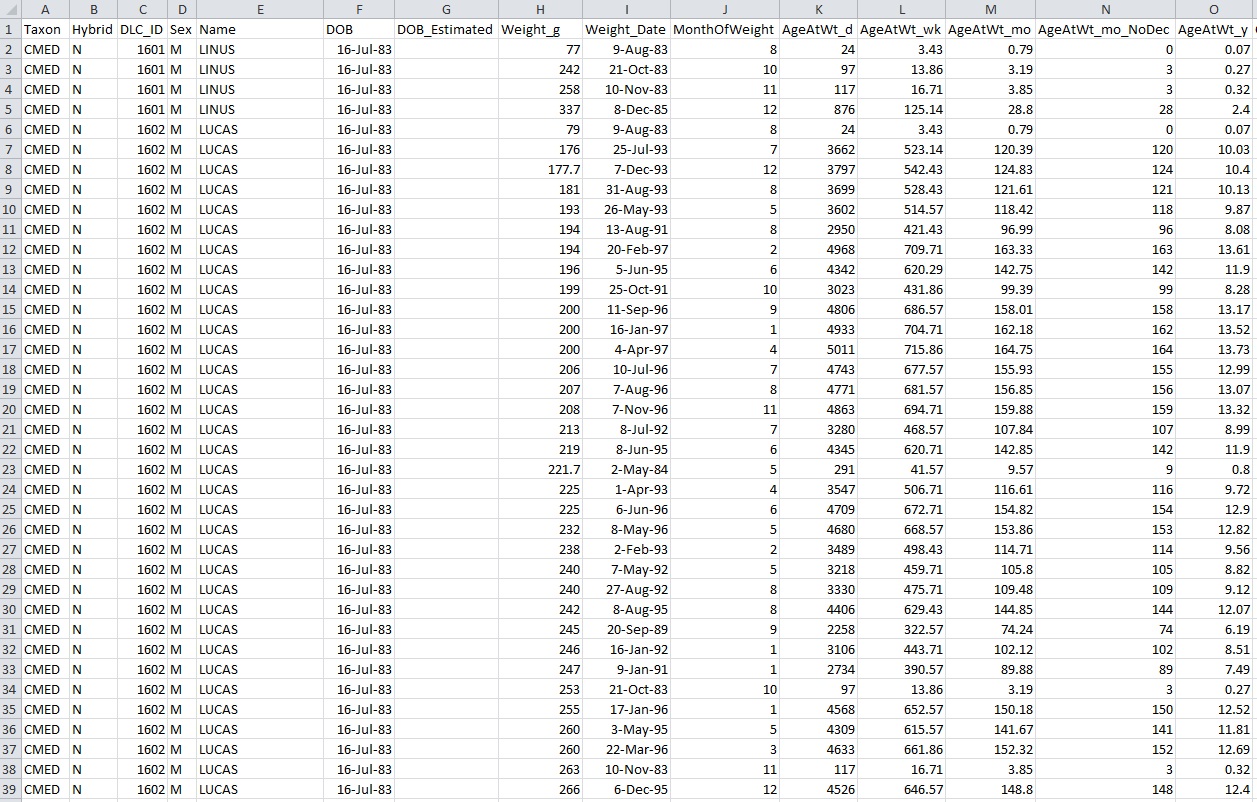
README.txt

I mentioned README.txt files in my previous post and I wanted to expand on this concept because README’s are one of my favorite data management tools.  The reason is that many of us keep notes separate from our digital data files, so our digital data is not always well documented or understandable at a glance. README.txt files cover this gap and allow you to add notes about the organization and content of your digital files and folders. This helps coworkers and your future-self navigate through your data.

README.txt files originated with computer code, where it is the first file someone should look at in order to understand the code (as implied by the name, README). Being a .txt file makes this information readable on a number of systems because of the simple file type. The simplicity and portability make README’s a great tool to coopt for data management.

I strongly recommend that you use a README.txt file at the top level of your project folder to explain the purpose of the project, the relevant summary and contact details, and general organization of your files. This is equivalent to using the first page of your laboratory notebook to give a general description of your project.

Here is an example of a top-level README.txt file for an imaginary chemistry project:

Project: Kristin’s important chemistry project
Date: June 2013-April 2014
Description: Description of my awesome project here
Funder: Department of Energy, grant no: XXXXXX
Contact: Kristin Briney, kristin@myemail.com

ORGANIZATION

All files live in the ‘ImportantProject’ folder, with content organized into subfolders as follows:

– ‘RawData’: All raw data goes into this folder, with subfolders organized by date
– ‘AnalyzedData’: Data analysis files
– ‘PaperDrafts’: Draft of paper, including text, figures, outlines, reference library, etc.
– ‘Documentation’: Scanned copies of my written research notes and other research notes
– ‘Miscellaneous’: Other information that relates to this project

 NAMING

Raw data files will be named as follows:

“YYYYMMDD_experiment_sample_ExpNum”
(ex: “20140224_UVVis_KMnO4_2.csv”)

STORAGE

All files will be stored on my computer and backed up daily to the shared department server. I will also keep a backup copy in the cloud using SpiderOak.

If I hand someone this project folder, the README.txt contains enough information to understand the project and do basic navigation through the subfolders. Plus, I tell you where all of the copies of my data live if one should accidentally be lost. While not extensive, this information is invaluable to someone unfamiliar with my work trying to find and use my files, such as a boss or coworker.

Besides having one top-level README.txt file, I also recommend using these text files throughout your digital file structure whenever you need them. If you cannot tell, at a glance, what all of the files and subfolder contain, you should create a README.txt (and possibly rename your files and folders!).

Here is an example of a low-level README.txt, which documents the differences between several different versions of analyzed dataset:

Description of files in the “Analysis/ReactionTime/KMnO4” folder

– KMnO4rxn_v01: Organizing raw data into one spreadsheet
– KMnO4rxn_v02: Trying out first-order reaction rate
– KMnO4rxn_v03: Trying out second-order reaction rate
– KMnO4rxn_v04: Revert back to v02/first-order fitting and refining analysis
– KMnO4rxn_FINAL: Final fit and numbers for reaction rate

The graphs corresponding to each file version are in the ‘Graphs’ subfolder, with correspondence explained by the README.txt contained therein.

You can see that README’s don’t have to be large files. Instead, they just need to contain enough information to know what you’re looking at.

README.txt files are ostensibly for other people who might use your data, but they are also useful for you, the data creator, if and when you come back to an older set of data. We tend to forget small details over time and a good README.txt serves as a reminder about those details and an easy way to reacclimate ourselves with our older data.

It takes a small amount of time to create README.txt, but they fill an important documentation gap and are incredibly useful for data given to others and data with long-term value. I encourage you to create a few README.txt files and improve your data management!

Posted in dataManagement, digitalFiles, documentation | 10 Comments

Wrapping Up A Project

Data managers talk a lot about doing data management before your project starts, but there is another important point in a project that is critical to data management: when a project ends. My recent post on managing thesis data got me thinking about this critical project point, along with a recent tweet from Robin Rice, Data Librarian at the University of Edinburgh, on what usually happens to data post-thesis:

While all project data are susceptible to such loss, thesis data are particularly fragile because data are often handed off to a PI when the student leaves the university. This puts someone who does not have much knowledge of the data in charge of caring for the data in the long term. The truth is that your PI will be much happier, and you will be happier with your own access in the long term, if you prep your data a bit before this hand off.

You have a distinctive opportunity to care for your data at the time when you are wrapping up a project. Not only is the data still fresh in your mind, but you probably already perform some management actions, like backing up your data and storing your notebook, when wrapping up a project. Adding a few simple steps to this process will let you enjoy the products of your work well after you finish the actual project.

Back Up Your Written Notes

People always think to back up their digital data (which you should definitely do) but few ever remember to back up written notes. This is a shame because data without the corresponding notes are often unusable. Not only does a backup copy address the possibility of a lost notebook, but it also helps the dissertators who hand over their notes at the end of their degree. If those researchers want access to their written notes after they leave their university, they must make a copy for themselves before the handover.

You can back up your notes by making physical photocopies, but any more I recommend digital scans. The benefit of scans is that you can store them directly alongside your digital data, which saves you from having to track down stray notes later. It does take time to scan a notebook, but the reward is ensuring access to your notes and maintaining the usefulness of data going forward.

Convert to Open File Formats

This is the one that has defeated me personally. Even though I have all my files from graduate school, most of my data is locked up in a proprietary format that I no longer have software to open. Don’t get stuck in the trap where you have your data but cannot read or use them!

If you haven’t done so already, wrapping up a project is a great time to convert files to an open format. Look for formats that are open, standardized, well-documented, and in wide use, such as: .csv, .tiff, .txt, .dbf, and .pdf. These formats can be opened by many programs, meaning lots of options for getting back your data when you need them.

If there isn’t a good open format for your data type, or you will lose important information during conversion, you’ll want to plan on how you’ll maintain access to the necessary software into the future. Realize that this option takes much more effort, so opt for open file format if you at all can.

Utilize “README.txt” Files

I cannot recommend “README.txt” files enough for making sense of digital files and file organization. These simple text files answer the very important questions of “What the heck am I looking at?” and “Where do I find X?” in your project file folders. This information is useful at every level of your project, from the main project folder on down to the folder containing sets of data. Plan to create one README.txt file per folder in as many folders as you can.

By their name alone, README.txt files announce that they are the first file to open when you or someone else is looking through your old data. Their job is to provide a map for exploring your files. For example, a top-level README.txt should give the general project information and a very coarse overview of file contents and locations. A low-level README.txt would be more specific as to what each file contains. These files need not be large, but their contents should provide a framework for easy navigation through your digital files and folders.

When wrapping up a project, you should create a README.txt file for at least your top-level folder and your most important project folders. This is doubly important if you are handing off your data for someone else to maintain, as good README’s make it exponentially easier for someone unfamiliar with the data figure out what’s what. Still, this system is useful to you, the data creator, in the event you come back to the data in the future.

Keep Everything Together

Finally, you will want to track down stray files and folders when you wrap up a project. It is much easier to manage all of your data if it is in one place (or two places if you have both physical and digital collections). Note that this does not include backups, which are separate and can exist offsite. Don’t forget to include things like reference libraries and relevant paper drafts in this pile; you want to save everything related to the project in the same place.

Once you have everything together, save it to an appropriate place and back it up. Keep track of your files and backups and move everything to new media every few years or so. You don’t want to be that researcher looking for Zip disk readers in 5 years. Remember that just because your project is complete, doesn’t mean that you can now ignore your data.

Final Thoughts

Researchers are often anxious to move onto the next thing when wrapping up a project, but you must resist the temptation to speed through the data preparation process. Taking an extra day to prepare your data properly can mean the difference between being able to use your data in 3 years and not having access to it at all. Between all of the time and effort you have invested in that data, and possibility that you may need it again in the future, it is worth taking a few extra steps to wrap up a project properly.

Posted in dataManagement, dataStorage | 1 Comment